Double booking happens when two appointments, requests, breaks, or outside calendar events claim the same time. To prevent it, use one reliable calendar workflow, set realistic service durations, keep availability narrow, block private commitments, import outside events when needed, and use booking approval for appointments that need review before confirmation.
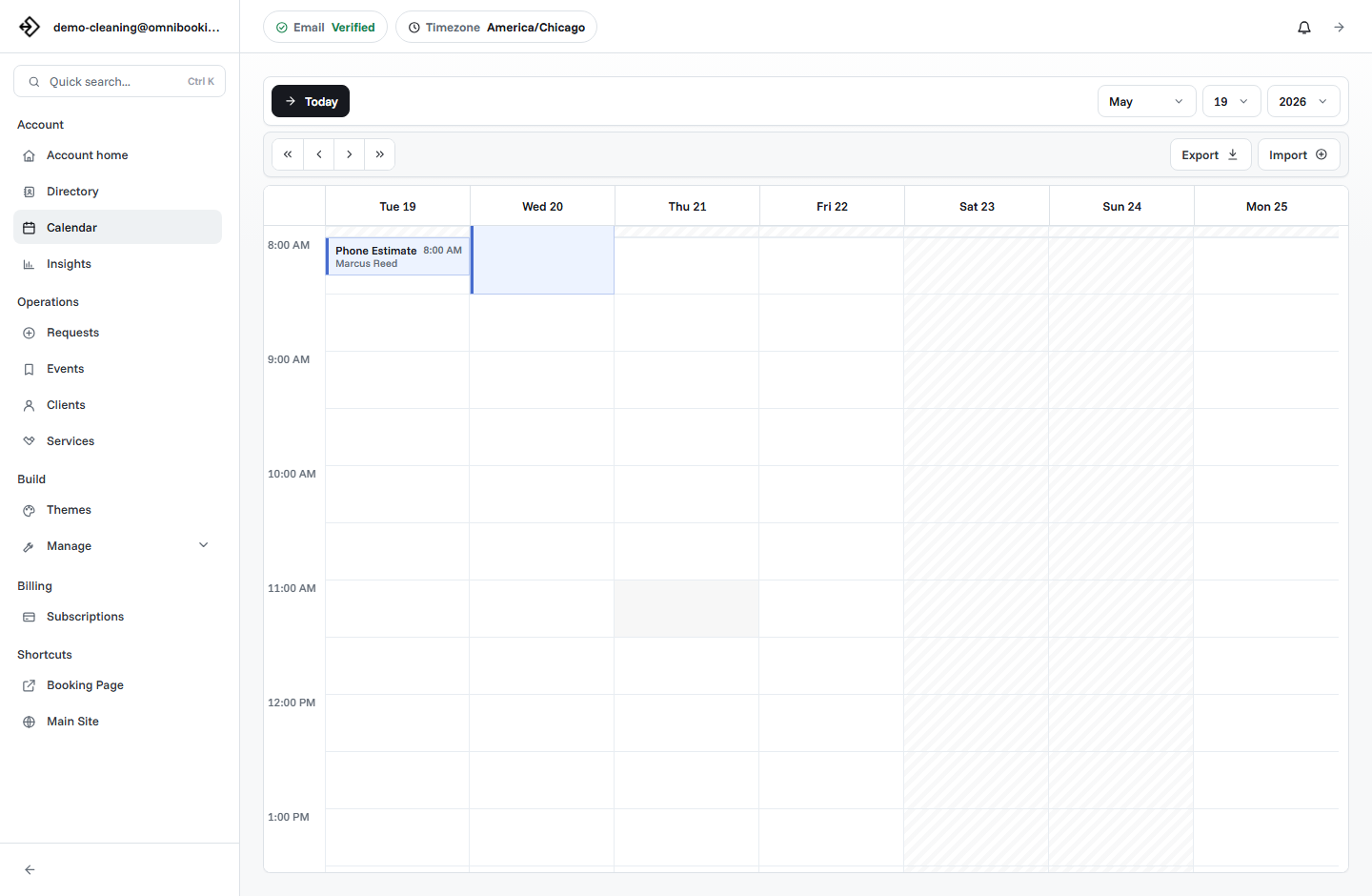
What double booking means
Double booking usually means two clients are scheduled for the same provider, room, service window, vehicle, chair, or appointment slot. It can also happen when a client booking overlaps a private commitment, imported calendar event, break, travel window, or pending request.
For a small service business, double booking is rarely just a calendar mistake. It creates client confusion, rushed service, rescheduling work, missed revenue, and trust problems. The fix is not only to check for exact matching start times. You need to prevent overlapping appointment windows.
Use one source of truth
Double booking gets easier when the schedule lives in too many places. If appointments are spread across a paper calendar, phone notes, a personal calendar, DMs, staff texts, and a booking page, something will eventually be missed.
Choose the calendar workflow that should decide whether a time is available. Then make every other system feed into it, block it, or stay out of the booking decision. A booking page can only protect time it knows about.
Public bookings
Client-facing appointments created from your booking page or entered from your dashboard.
Private commitments
Breaks, travel, admin work, errands, school pickup, supply runs, or unavailable hours.
Outside calendars
Personal, work, or team calendars that may need to be imported or manually blocked.
Check for overlaps, not just matching start times
Two bookings do not need the same start time to conflict. A 10:00 AM appointment that lasts 90 minutes overlaps a 10:30 AM appointment, even though the starts are different. A good booking setup checks whether the proposed start and end time collide with anything already on the calendar.
This matters for services with different durations. A 15-minute nail trim, 45-minute consultation, 60-minute training session, and 120-minute deep clean all reserve different amounts of time. The calendar has to protect the full window, not only the first block.
Set accurate service durations
Service duration is one of the most important double-booking controls. If a service takes 75 minutes but is listed as 60 minutes, the next client can appear too soon. The schedule may not technically show two appointments at the same exact time, but the business is still overbooked.
Use the real appointment length, including the client-facing time you promise. If the work requires cleanup, notes, or room turnover, either include that time in the duration or block it separately.
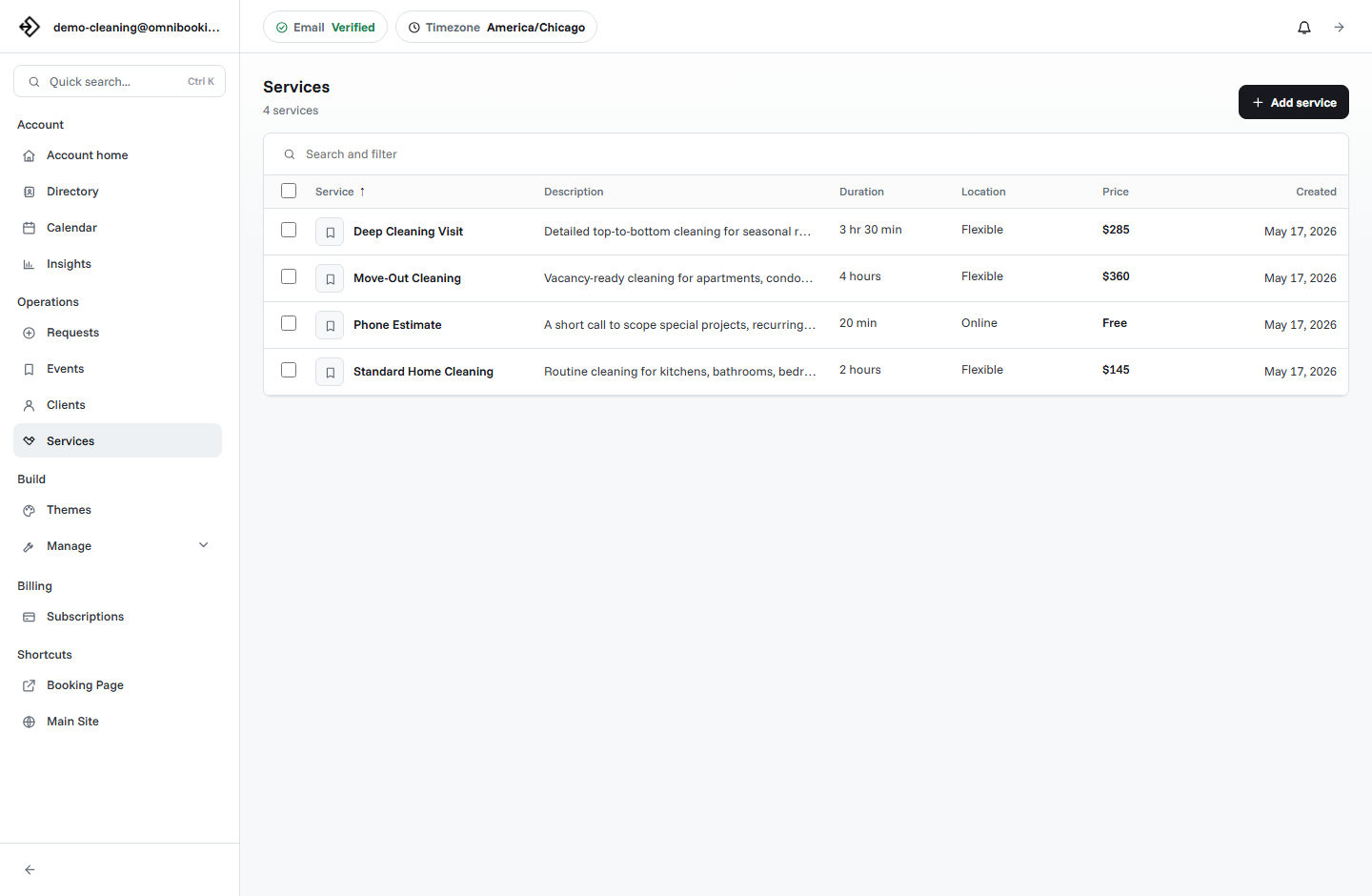
- Actual client time from start to finish.
- Setup, cleanup, notes, payment follow-up, or reset time.
- Whether the duration changes for new clients versus repeat clients.
- Whether larger jobs should be requests instead of instant bookings.
- Whether the duration fits the selected calendar block size.
Keep availability realistic
Double booking often starts with too much public availability. If every empty hour is open, clients can claim time that was only technically free. The schedule may ignore travel, lunch, prep, admin work, or the fact that some appointments should never be stacked back to back.
Open the hours you actually want clients to book. Keep private work private. If you need Monday morning for planning or Friday afternoon for follow-up, do not expose those hours to the booking page.
Block breaks, travel, and admin time
Breaks and travel are real calendar events, even if a client is not paying for them. If they are not blocked, a booking page may treat them as open space. That can create a double booking between client work and the hidden work required to deliver it.
For mobile services, travel time is especially important. A cleaner, contractor, trainer, photographer, or home-service provider may have open hours on paper, but not enough time to move between locations.
- Lunch, breaks, and end-of-day wrap-up.
- Travel between client locations or work sites.
- Setup and cleanup between appointments.
- Notes, invoicing, approvals, and follow-up messages.
- Supply runs, parking, room turnover, and equipment changes.
- Personal commitments that should never be bookable.
Protect pending booking requests
A pending request can still represent time you may need to hold. If a client requests 2:00 PM and the owner has not approved or denied it yet, letting another client instantly book 2:00 PM can create a conflict.
For request-based workflows, treat pending and confirmed appointments as unavailable until the request is resolved. That gives the business room to review the booking without turning every pending appointment into a race.
Confirmed event
The appointment is accepted and should block public booking for its full duration.
Pending request
The appointment still needs review, but the requested time should be protected while you decide.
Denied request
The appointment is not happening, so the time can be released back to the calendar if it is still available.
Use booking approval for uncertain appointments
Some double booking problems are really fit problems. A client chooses a time that is technically open, but the job needs a longer duration, more travel, a different staff member, or a quote before the appointment is safe to confirm.
Booking approval keeps those requests from landing directly on the calendar as confirmed appointments. The client can submit a preferred time, and the business can review the details before committing the slot.
Import outside calendar events when needed
If you also use a personal calendar, work calendar, or separate team calendar, those commitments need to be represented in the booking workflow. Otherwise the public page may offer a time that is already taken somewhere else.
Calendar imports are useful when outside events should block booking time. They are especially helpful for people who manage school schedules, staff meetings, personal appointments, or project commitments outside the booking tool.
- Import the calendar events that should block client booking.
- Confirm imported times use the correct timezone.
- Check whether all-day events should block the full day or be handled manually.
- Review recurring outside commitments after importing.
- Keep old or cancelled outside events from blocking time unnecessarily.
Watch the edge cases
Most double booking prevention is straightforward: do not show unavailable time. The edge cases are where problems still sneak in. These are usually appointments near the beginning or end of the day, same-day bookings, imported events, pending requests, and services with the wrong duration.
When a double booking happens, do not only fix that one appointment. Find the rule that allowed it, then update the booking setup so it is harder to repeat.
Example setup to prevent double booking
A solo service business might use a simple rule set like this. The goal is to keep the booking page convenient without letting clients claim time that is not really available.
Double booking prevention checklist
Use this checklist before sharing a booking link or after any schedule conflict.
- Your booking page is using one reliable calendar workflow.
- Each service has a realistic duration.
- Service durations fit the selected calendar block size.
- Availability only shows times you can actually serve.
- Breaks, travel, prep, cleanup, and admin time are blocked.
- Pending and confirmed appointments are treated as unavailable.
- Outside calendar commitments are imported or manually blocked.
- Booking approval is enabled for appointments that need review.
- Same-day booking rules give you enough notice.
- You tested the client flow and checked for overlapping times.
How Omnibooking helps prevent double booking
Omnibooking uses service durations, calendar blocks, availability rules, pending and confirmed event checks, booking delays, booking requests, calendar imports, and blocked time to help keep public booking slots realistic. That lets clients choose from available times while the business stays in control of the calendar.
For related setup help, read how to set booking availability without overbooking yourself, how calendar blocks affect appointment scheduling, and same-day booking. The online booking checklist is also useful before publishing a new page.
Related resources
Set Booking Availability
Start with realistic hours, delays, breaks, and blocked time.
Calendar Blocks and Scheduling
Understand how block size affects start times and overlapping appointment windows.
Same-Day Booking Rules
Control short-notice bookings before they create calendar pressure.
Reduce No-Shows With Reminders
Use reminders and confirmations after the slot is safely reserved.
FAQs
What is double booking?
Double booking happens when two appointments, requests, breaks, or outside commitments overlap the same time on the calendar.
How do I prevent double booking?
Use accurate service durations, realistic availability, blocked time, booking delays, calendar imports, and overlap checks that treat pending and confirmed appointments as unavailable.
Can booking software prevent double booking?
Booking software can help prevent double booking when services, availability, blocked time, and outside calendar events are configured correctly. It can only protect time it knows about.
Should pending booking requests block availability?
Yes, in most request-based workflows. A pending request should usually protect the requested time until the business owner confirms or denies it.
Why do double bookings still happen with a booking page?
Common causes include inaccurate service durations, unblocked travel time, same-day bookings with too little notice, outside calendar events that were not imported, and appointments that should have used approval.